Friday, April 9, 2010

SUSE Engineering Quality: ASP.NET on IBM Mainframe

I experienced, first-hand, the Outstanding quality of SUSE Engineering today. Common Code-base has always been touted as a key differentiator with SUSE Linux Enterprise, where the same operating system is compiled (AutoBuild) and ready for a number of different hardware chipsets/platforms. The implication is that the latest & greatest code/patches will be simultaneously available for SUSE Linux Enterprise on x86 (32 & 64 bit) as well as IBM POWER, IBM System z etc.

With IBM System z (aka the Mainframe), its been said that SUSE Linux Enterprise runs natively & without any emulation layer. Further, there is approximately 1% of code change in the kernel due to the fact that the System z uses a different chipset.

All the above is true and I am personally convinced today. Why? Because I had the opportunity to work on a small virtual instance (512Mb RAM) of SUSE Linux Enterprise Server 11 (SLES 11) running on the legendary IBM System z10 BC this week. The machine is also hosting a number of other SLES 11 instances and traditional mainframe workloads (ie z/OS).

Previously, I wrote an entry on setting up mojoPortal (ASP.NET web app) on SUSE Linux Enterprise with the Mono extension (link). Using the exact same steps that I described, written & tested against my Lenovo Thinkpad (x86), I can achieve the same result on the IBM System z10 BC! encem

That's right folks, the only difference is I needed to install SLES 11 DVD for System z (s390x). Next, I used the exact same mojoportal rpm (noarch) & SLES-11-Mono-GM-DVD1.iso (noticed its hardware platform independent) that worked on my Lenovo Thinkpad. In less than an hour (the speed and throughput of System z is amazing), I've got everything up and running on SLES 11 on System z.

Interesting how we now have the option of running traditional LAMP stacks, Java workloads and .NET applications on SLES 11 on System z. Further, with database options of PostgreSQL, MySQL, IBM DB2, Oracle DB added to the mix... Wow, this opens up more options for server consolidation and the type of applications that can now be hosted on System z to achieve unrivaled uptime, vertical scalability, security and I/O throughput. sembah

Sweeeeeet!! senyum

Thursday, March 25, 2010

MojoPortal on SLES 11 with Mono Extension

MojoPortal (http://www.mojoportal.com) is an open source, cross-platform*, content management system (CMS) using ASP.NET as the web development language. Its intended for personal and commercial use and license under the Common Public License 1.0. You can read more on the motivations of the author here.

* - With Mono, cross-platform is a truer statement now. senyumkenyit

On the Windows platform, you would require IIS (web server) with ASP.NET 3.5 SP1 and a database (usually MS SQL Server). With SUSE Linux Enterprise Server 11 and the Mono Extension, we have Apache2 (web server) with Mono 2.4 runtime and PostgresQL database as the counterparts.

This blog entry will show you in rather painless fashion on how to install MojoPortal on SUSE Linux Enterprise Server 11 (with the Mono Extension) and start using it. To help with reading efficiency, I have 2 sections, the first section is the Expressed version where I assumed the reader is skilled and proficient with SUSE whereas the second is the Expanded version where it will include more details and screenshots. Finally, a little more info/detail, my setup has SLES 11 with Mono Extension virtualized on top of SLES 11 Xen hypervisor.

As a next step, I would consider leveraging SUSE Studio to build a small MojoPortal appliance (thus eliminating the need for this journal) and users can simply download the entire workload (OS, App & Data) without doing any "wiring". Tempting... stay tuned... senyum

Pre-requisite: You already have a "vanilla" SLES 11 installed with basic network access and software repositories setup (ie DVD or online through NCC).

Expressed/Summarized (aka for SUSE admins) instructions:

1) Download SUSE Linux Enterprise Mono Extension from this LINK. You only require the SLES-11-Mono-GM-DVD1.iso (140Mb). The other ISO (162Mb) is meant for the older SLES 10 SP2.

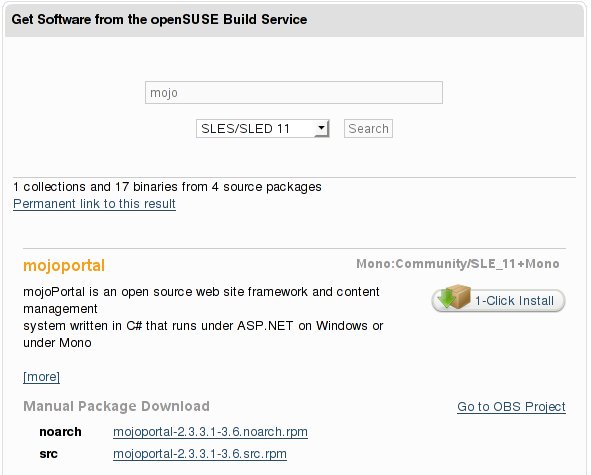
2) Download MojoPortal already packaged as an RPM from openSUSE.org. At the time of this entry, I downloaded and used mojoportal-2.3.3.1-3.6.noarch.rpm (12Mb) from this LINK. If link does not work, surf to http://software.opensuse.org/search and search for "mojo" with SLES/SLED 11 selected in the listbox.

3) Install (if not already) Apache2 web server: < zypper in apache2 >

4) Install PostgresQL database: < zypper in postgresql-server >

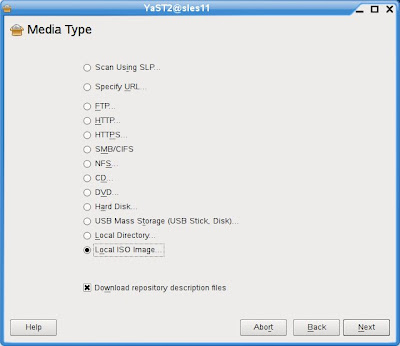
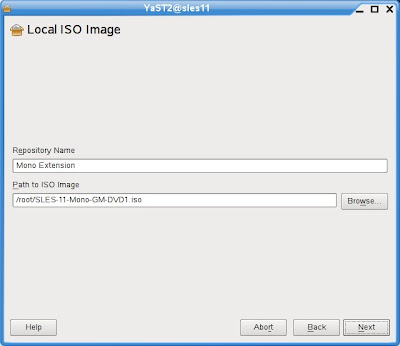
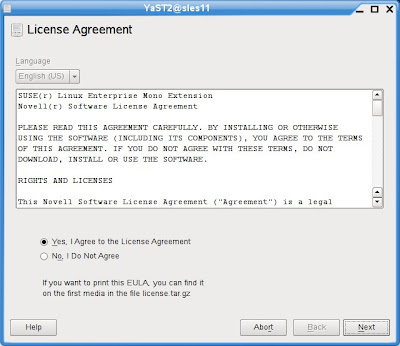
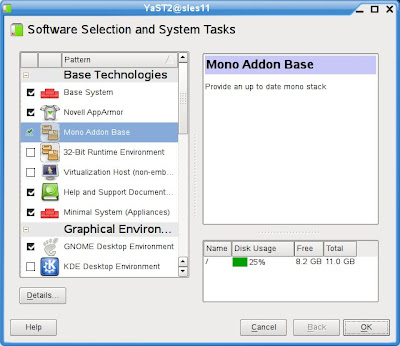
5) Install Mono Extension/runtime on top of SLES 11. Use YaST -> Software -> Add-On Products or < yast2 add-on > to install the Mono Extension, ISO you downloaded in step (1).

6) Install MojoPortal web application: < rpm -ivh --nodeps mojoportal-2.3.3.1-3.4.noarch.rpm >. The nodeps flag is required as the mojoportal RPM is still looking for the older version 2.0 of Mono. The official SLE 11 Mono Extension is at version 2.4.

7) Ensure PostgreSQL server is running < rcpostgresql start >, and proceed to configure PostgreSQL database for MojoPortal: < /usr/share/mono/asp.net/data/mojoportal-2.3.3.1/init >

8) Configure Apache2 web server for MojoPortal: < cp /usr/share/mono/asp.net/conf/mojoportal-2.3.3.1/mojoportal.conf /etc/apache2/conf.d/ > and edit the mojoportal.conf file in the /etc/apache2/conf.d/ directory < vi /etc/apache2/conf.d/mojoportal.conf >, put a # in front of the line < MonoServerPath mojoportal "/usr/bin/mod-mono-server2" > and remove the # in the following line < #MonoServerPath mojoportal "/opt/novell/mono/bin/mod-mono-server2" >. Restart Apache2 to have these configuration changes in effect < rcapache2 restart >.

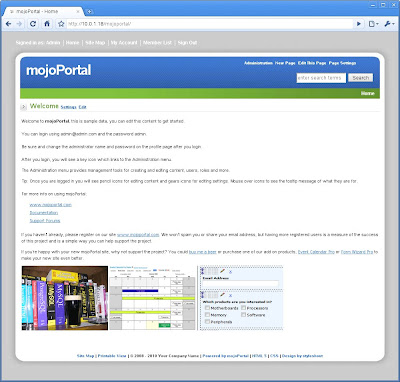
9) Open a web browser and point to http://[hostname Or IP addr]/mojoportal . The initial startup will take awhile as MojoPortal initializes for the first time. Login as MojoPortal Administrator with ID admin@admin.com and Password admin.

10) To ensure Apache2 web server and PostgreSQL database server is always auto-started on reboot: < chkconfig -s apache2 on > and < chkconfig -s postgresql on >

For more usage knowledge, please see MojoPortal.com for details at http://www.mojoportal.com/documentation.aspx
Link

Expanded/Detailed (aka for those new to SUSE) instructions:

1) Download SUSE Linux Enterprise Mono Extension from this LINK. You only require the SLES-11-Mono-GM-DVD1.iso (140Mb). The other ISO (162Mb) is meant for the older SLES 10 SP2.
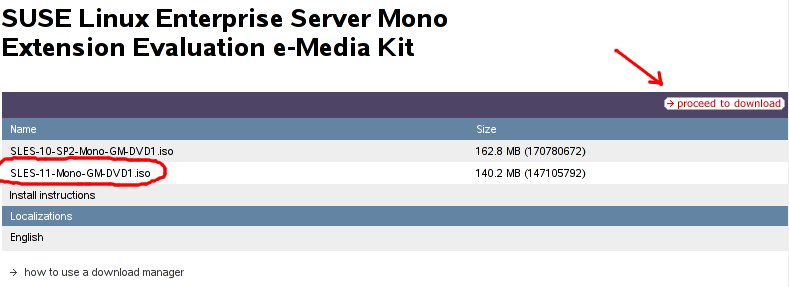

2) Download MojoPortal already packaged as an RPM from openSUSE.org. At the time of this entry, I downloaded and used mojoportal-2.3.3.1-3.6.noarch.rpm (12Mb) from this LINK. If link does not work, surf to http://software.opensuse.org/search and search for "mojo" with SLES/SLED 11 selected in the listbox.

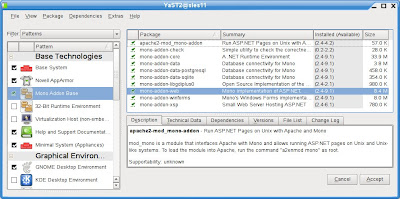
3) Install (if not already) Apache2 web server via YaST -> Software -> Software Management.
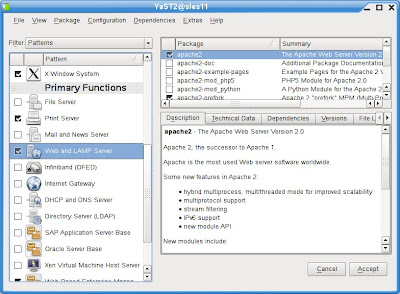

4) Install PostgresQL database via YaST -> Software -> Software Management.
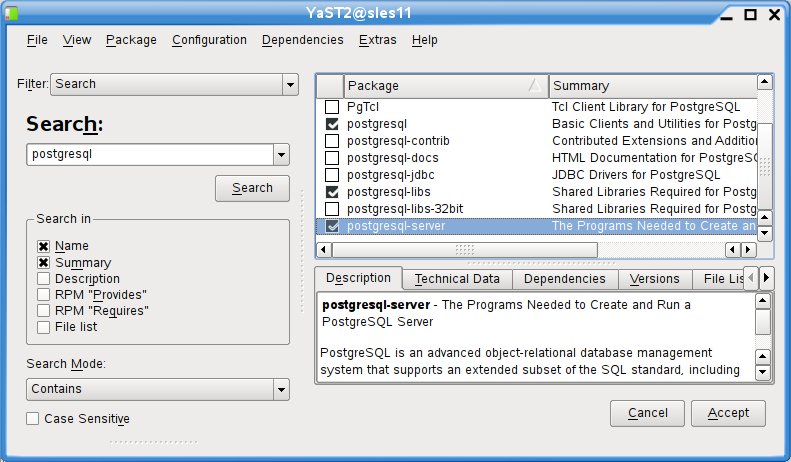

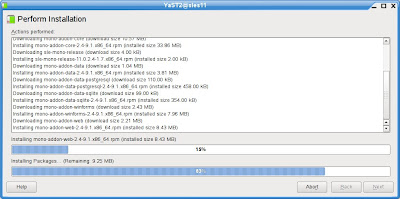
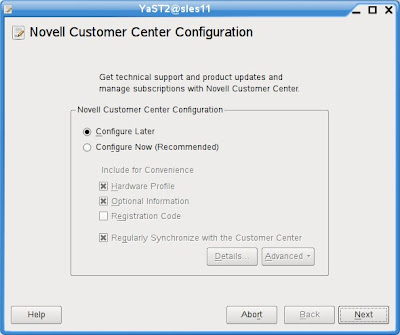
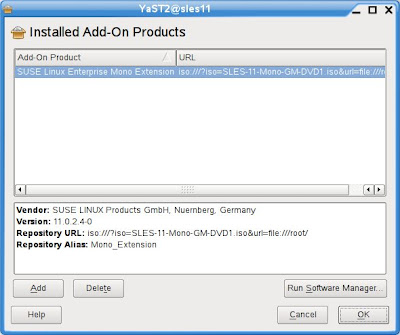
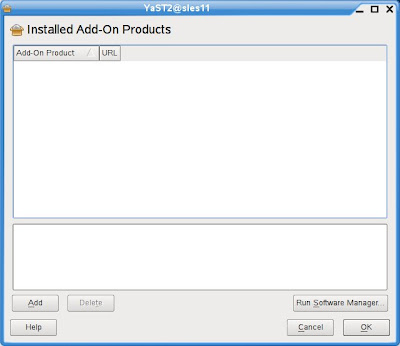
5) Install Mono Extension/runtime on top of SLES 11. Use YaST -> Software -> Add-On Products or < yast2 add-on > to install the Mono Extension, ISO you downloaded in step (1).


6) Install MojoPortal web application downloaded in step (2) with the following command executed as root: < rpm -ivh --nodeps mojoportal-2.3.3.1-3.4.noarch.rpm >. The nodeps flag is required as the mojoportal RPM is still looking for the older version 2.0 of Mono. The official SLE 11 Mono Extension is at version 2.4.

7) Ensure PostgreSQL server is running < rcpostgresql start >, and proceed to configure PostgreSQL database for MojoPortal: < /usr/share/mono/asp.net/data/mojoportal-2.3.3.1/init >

8) Configure Apache2 web server for MojoPortal: < cp /usr/share/mono/asp.net/conf/mojoportal-2.3.3.1/mojoportal.conf /etc/apache2/conf.d/ > and edit the mojoportal.conf file in the /etc/apache2/conf.d/ directory < gedit /etc/apache2/conf.d/mojoportal.conf >, put a # in front of the line < MonoServerPath mojoportal "/usr/bin/mod-mono-server2" > and remove the # in the following line < #MonoServerPath mojoportal "/opt/novell/mono/bin/mod-mono-server2" >.
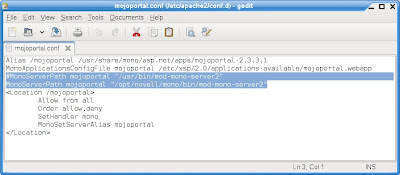
Restart Apache2 to have these configuration changes in effect < rcapache2 restart >.

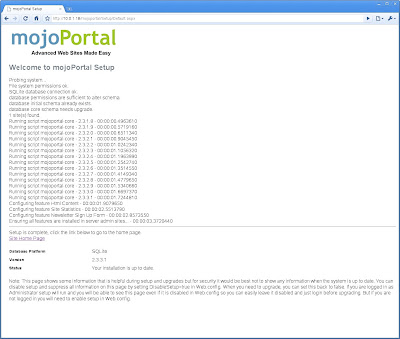
9) Open a web browser and point to http://[hostname Or IP addr]/mojoportal. The initial startup will take awhile as MojoPortal initializes for the first time. Login as MojoPortal Administrator with ID admin@admin.com and Password admin.

10) To ensure Apache2 web server and PostgreSQL database server is always auto-started on reboot, use YaST -> System -> System Services (Runlevel)
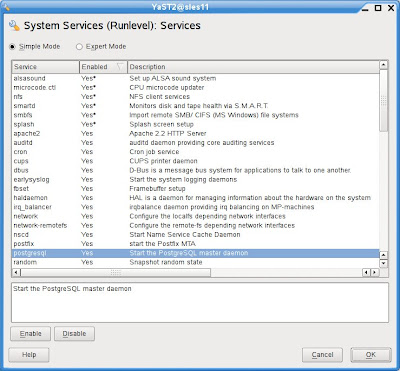

For more usage knowledge, please see MojoPortal.com for details at http://www.mojoportal.com/documentation.aspx
Go to http://software.opensuse.org/search and enter "mojoportal" in the text field and ensure you select SLES/SLED 11 in the drop-down box and click Search.

Cheers!
peace

Wednesday, December 30, 2009

The YoLD is Dead; Long Live the YoLD!

Twas the first day of Christmas 2009 and my true love gave to me... a Linux-ready USB WebCam!menari

First, YoLD = Year of the Linux Desktop. This proclamation has been ringing in my ears since 2004... for some of you, even earlier. I think, collectively, we've come to realize that its an evolution and not a revolution... hence my proclamation:

The YoLD is Dead (2009); Long Live the YoLD (2010)!

Much Thanks and Gratitude to the French for inventing the original. See Wikipedia for details here.

Back to my Christmas gift from my wife. She recalled my frustrations 2 years back in getting a brand-new USB WebCam to work with Linux (openSUSE, SLED, Ubuntu etc). She, a non-IT person, went shopping this Christmas and found a WebCam that explicitly supports Linux! Wow! sembah

And it WORKED! No driver installation/compilation required, true plug and play. Worked with Kopete and also with Skype. It worked on openSUSE 11.2 and SLED 11. Pretty sure it will work on many of the current Linux distributions. The box did say Kernel 2.6.21 & above. Here are a few pictures of the box.


Yes, I'm helping to advertise for this vendor because they deserve my support for their explicit Linux support. senyum

Finally, I credit this Blog entry to my wife. Thanks dear, you're the best! love

Saturday, December 12, 2009

ATI 3D Desktop Effects on SLED 11

This week, I find myself in Colombo, Sri Lanka. This is my first trip to Sri Lanka so its exciting for me to visit new places and people. The event is Novell's India Partner Academy where we see hundreds of partners from Pakistan, India and Sri Lanka converge in Colombo to hear Novell's commitment, roadmaps and sharing of experiences so as to be more effective.

Anyway, I never wrote how to enable 3D Dekstop Effects with ATI graphics card as my personal Thinkpad uses nVidia. However, I had the opportunity to help Henry, our India Partner Executive, setup his Thinkpad T60p (with ATI Mobility FireGL V5250) with 3D Effects. As usual, the 3D Effects are already installed on his SUSE Linux Enterprise Desktop 11. Its the graphics driver that is not 3D capable as Novell does not ship proprietary drivers with the base SLED 11.

Usually, the recommended and easy way is to use YaST Novell Customer Center Configuration. Upon successful registration, you will get an ATI repository setup in your YaST Software Repositories. All you need to do next is to install x11-video-fglrxG01 from YaST Software Management.

However, using the recommended method above failed to work for me for this particular Thinkpad T60p. The drivers installed successfully but X refuse to start and after a few flickers we are left with a blank black screen. Thus, I'm forced to go down the manual path where I download the latest ATI Catalyst driver and compiled a driver.

Here's a brief journal of what I did. NOTE that this is the manual method and should only be used if the recommended/easy/painless method described above does not work. The disadvantage of using this method is that you will need to repeat these steps (recompiling the driver) everytime you upgrade your SLE kernel. Here goes:

1) Go to http://support.amd.com/us/gpudownload/Pages/index.aspx and select Linux (x86 for 32-bit and x86_64 for 64-bit of SLED 11), followed by FireGL and Mobility FireGL V5000 and click GO. Scroll to the bottom and click to download the ATI Catalyst Proprietary Linux Driver (version 9.3 at the time of this writing).

2) Once downloaded, as root, make the file executable < chmod +x ati-driver-installer-9-3-x86.x86_64.run >

3) Next, to list the driver build options (for different Linux Distro) via < ./ati-driver-installer-9-3-x86.x86_64.run --listpkg >. You should see SuSE/SLE11-IA32 amongst the many other SuSE entries.

4) Next, to build the driver for SLED 11, execute < ./ati-driver-installer-9-3-x86.x86_64.run --buildpkg SuSE/SLE11-IA32 > (since the installed SLED 11 is 32-bit)

5) The result is a generated RPM called fglrx_7_4_0_SLE11-8.593-1.i386.rpm. Before you install this RPM, please get to runlevel 3 via the command < init 3 >

6) Install the RPM via < rpm -ivh fglrx_7_4_0_SLE11-8.593-1.i386.rpm >

7) Finally, execute SaX2 tool to configure this puppy via < sax2 -r -m 0=fglrx >

8) With SaX2 configuration completed, go back to runlevel 5 via < init 5 > and enable Desktop Effects via the Computer -> Control Center -> Desktop Effects.
Link
A good brief reference is also available at "ATI Installer HOWTO for SUSE/Novell Users" at http://www.suse.de/~sndirsch/ati-installer-HOWTO.html

Done. senyum