Friday, May 8, 2009

Windows 7 RC virtualized on Xen

Yep, downloaded a copy of Windows 7 RC and a corresponding product key. Installed and now fully virtualized under SLES 11 Xen... no hacks, no tricks, it just worked... the way I like it. Yeah! senyum


The installation experience for Windows 7 RC is smooth and painless coz it made all my choices for me... how sweet?! siul All I had to do was to tell it to do a fresh install and choose the target disk! hah Of course, post-installation requires me to create a user account and password followed by activating the product with the product key. No fuss, no stress installation for an end user desktop.

The installation experience for SUSE Linux Enterprise Desktop 11 is pretty close too in terms of ease and yet gives me more options at install time to configure the system the way I want it... I welcome the arrival of Windows 7, as iron sharpens iron, it just gets better (progress) as opposed to a monopoly and innovation suffers. senyum

Wednesday, May 6, 2009

Running .NET on Apache2 with Mono on SLES 11

This is a journal on how I setup SLES 11 with Xen and the Mono Extension to demonstrate the capabilities of SLES 11 in hosting .NET applications on Apache2, all on a single machine. senyum

1. Installed SLES 11 on my Lenovo Thinkpad T61p.

2. Install the SLES 11 Xen hypervisor. YaST -> Virtualization -> Install Hypervisor and Tools. Reboot the machine into the SLES 11 Xen-kernel. Configure a local network bridge so that virtual machines and the host can communicate via TCP/IP. For details, see my other entry at http://sellingfreesoftwareforaliving.blogspot.com/2008/06/simple-nat-with-xen-setup.html

3. Create and install SLES 11 as a new virtual machine (domU) called WebSrv. Install the Apache2 web server (installation pattern: Web and LAMP Server) and the Mono extension (post-installation).

The Mono extension can be downloaded from http://download.novell.com, select SUSE Linux Enterprise Mono Extension and click Search. Alternatively, the direct link (at the time of this writing) is HERE. Installation of the Mono is fairly straight forward YaST -> Software -> Add-On Products and select the ISO file that has been downloaded.

4. Create and install a Windows virtual machine (domU) called WinDev. I have used Windows Server 2003 and Windows Vista. You can also use Windows XP... as long as its a platform where we can install Visual Studio 2008 Standard Edition. See this link for installation requirements HERE.

5. Download and install Visual Studio 2008 Standard Edition onto the Windows virtual machine (WinDev) created previously. Visual Studio 2008 can be downloaded as a trial (90 days) HERE ... even better if you have an MSDN subscription and you can use this without worrying about expiration of your trial licence.

6. Download the freely available .NET ASPX web application called BlogEngine.NET (source) from http://www.dotnetblogengine.net/ into the Windows virtual machine. Latest version (at time of this entry) is V1.5. Optionally, you might want to refer to their online video on how to download and install this on Visual Studio HERE.

7. Start Visual Studio 2008 and import the BlogEngine.NET application (source). From the Solution Explorer, collapse the tree and right-click on the BlogEngine.Web folder and select Set as Startup Project.

8. Test that the BlogEngine.NET application works by hitting Ctrl-F5 or Menu Bar -> Debug -> Start without Debugging. If successful, the IE browser will launch and you will see the start page for the BlogEngine webapp. Close IE to end the debugging session within Visual Studio 2008.
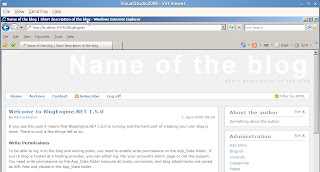


9. On the SLES 11 virtual machine (WebSrv), create a sub-directory called BlogEngine in /srv/www/htdocs/ and share this directory via SAMBA (with read and write access), YaST -> Network Services -> Samba Server.

10. On the Windows virtual machine (WinDev), map the shared directory from SLES 11 (WebSrv) as Z: drive.

11. Export the BlogEngine.NET application to Z: drive via Menu Bar -> Build -> Publish Website. See screenshot below. The initial publishing will take some time as compilation is required.
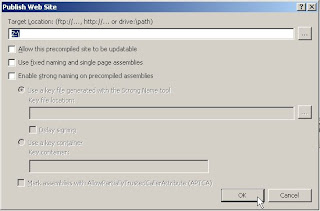


13. Point your IE browser to http://[WebSrv]/BlogEngine , where [WebSrv] is the IP address or resolvable hostname of the SLES 11 virtual machine, and verify that the .NET ASPX application works!

If so, go to SLES 11 (WebSrv) and open a Firefox browser to http://localhost/BlogEngine and verify the .NET ASPX web application loads.
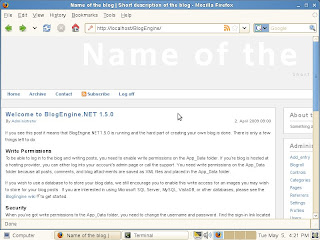


DONE! encemsenyum

Tuesday, May 5, 2009

Xen Bridged networking with NIC Bonding on SLES

We have a customer that uses the SLES Xen hypervisor (SLES 10 SP2 and now SLES 11) on their test and development server. The idea is simple, virtualize all their test and development servers on a single 2-way QUAD core, 32 GB RAM and 1TB RAID-5 SATA drive. This way, they save money on the number of physical machines in their test/development environment, improve utilization (not all projects runs concurrently). Their production systems are still running on bare-metal without virtualization... for now. senyum

They've been having some networking issues (ie packet drop in PING test) and suspected its either the NIC (Broadcom 4 port Gb NIC and using NIC bonding) hardware or the netorking setup needs tweaking. Here's a journal of what I discovered and resolved (to a certain extent - hardware not in my scope):

1. Boot up SLES 11 (x86_64) with the default kernel (non-Xen) and configure the basic networking. Created a bond0 device that bonds 2, out of the 4, physical ports for NIC bonding (static IP, DNS and Routing info provided by customer). Tested the configuration and it works, we can ping other servers and development desktops can ping the server. Opened port in SuSEFirewall and SSH session works. Used yast2 lan for configuring and verified (always a good thing) via the following files /etc/hosts, /etc/resolv.conf, /etc/sysconfig/network/ifcfg-bond0

The following steps are done with reference to this Novell support document "Hassle-free Xen Networking" at this link.

2. Restart SLES 11 with the Xen kernel. Verify the following entry is commented out in /etc/xen/xend-config.sxp

## (network-script network-bridge)

and instead have the following:

(network-script )

Restart Xen via rcxend restart.

3. Created a bridge interface called br0 and bridged it to bond0. Moved all the static IP settings from bond0 to br0. In the place of the now empty bond0 (zero IP settings), I placed static IP 0.0.0.0 and Subnet Mask /32 (or 255.255.255.255). Verify that br0 is the interface with the static IP while bond0 does not. Also verify all the network pings between the servers and development desktop. senyum

You can see this in more detail as referenced earlier at this link.

4. Almost there! Next, I just needed to verify and update virtual NIC settings in all domUs (VMs). By inspecting each VM configuration file in /etc/xen/vm/, we need to amend the vif variable/s (see example below):

from: vif=[ 'mac=00:16:3e:24:96:38', ]
to: vif=[ 'mac=00:16:3e:24:96:38,bridge=br0', ]

Don't forget to refresh the configuration via xm delete [VM] and xm new [VM] where [VM] is the name of the domU (VM).

Done! Customer can ping the host (SLES 11) and their domUs (SLES, RHEL and Windows) successfully without any packet drops. senyum

Monday, April 27, 2009

The SLE 11 Community Preview in Singapore

The SUSE Linux Enterprise 11 community preview in Singapore was held last Wednesday evening (22nd April, 7pm). Well... we really got started at 7:30pm as we were chatting away and waiting for some of the regulars to arrive. Darrel and Mike did a fantastic job organizing and getting the word out. Thank you! peace

I'm looking forward to visiting the next community SUSE meetup in May and also supporting Darrel in Singapore's Software Freedom Day in September. senyum

We had slightly over 35 people turn up and spent slightly over an hour (initially planned 45minutes) on my presentation and demo. I was delighted at the questions and discussions, a real lively session. This was followed by some light snacks sponsored by Novell.

Update:encem
Link to Meetup -> http://www.meetup.com/sg-linux/calendar/10093898/
Link to Photos -> http://www.meetup.com/sg-linux/photos/596475/
Link to Presentation -> http://files.meetup.com/95900/SLE-11-CommunityLaunch-SGP.pdf